
Safety AI User Guide/Monitoring
Monitoring
Chapter Overview
Learn how to monitor live camera feeds and interpret information displayed by Safety AI.
Warning
Safety AI is not a monitoring solution. Depending on the available resources, continous monitoring may result in out of memory exception and prevent the system from correct functioning.
Feed
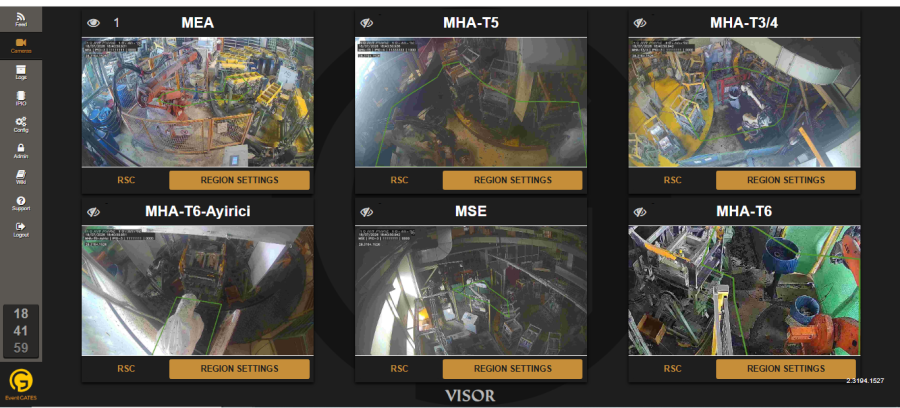
First panel of Visor displays processed live camera feed. This panel is capable of displaying multiple cameras at once. Selection and order of cameras are managed on the camera panel.
Visor with a single Vislet visible looks like this:

Visor with four visible Vislets:

Version
On the right bottom corner of the feed panel you can see the working version of the Visor application.
Turn Monitoring On/Off
When you log in to Visor, it is very possible that you do not see any video playing on feed panel. This is because Vislets are turned off for live monitoring and you need to turn them on. Go to Cameras panel and click on the "eye" icon 
 to turn monitoring for a respective Vislet on and off.
 Display Order

Numbers on Vislets on the same page determine the display order. You can change the order by clicking on the number and selecting the order you want.

Information on Vislet Feed
Processed feed of a Vislet is decorated with a set of information. Although depending on the version of VIS and your deployment, information on video feed my differ this is the list of attributes a typical Vislet feed carry:
- System date and time as (dd/MM/yyyy HH:mm:ss.SSS)
- Name of the Vislet
- Name of the IPIO connected and it's current input and output values (repeats if it connects to multiple IPIOs)
- VIS version
Note
The available status information may vary depending on your system configuration.
Additional information can be seen on the bottom of each feed including name of the Vislet as well as server and client FPS values. These are actual processing performance results as it is processed in VIS on the Visbox and on the client. If client is slower then the server it very like it will cause an out of memory exception quite soon.
Recordings
In the case of a recorded event, all information visible on Vislet is recorded as it is seen on the live feed. It is not possible to record without information or change the information with built-in system features.
AI
Regions
All regions defined on a Vislet is shown with lines. Line color changes depending on the situation:

- Green: no event
- Red: violation event
- Orange: false detection event (155) (only if PV enabled)
Check event section for details how events correlate with monitoring and logging.
Detection and Labels
All objects of detected classes on an image are visually marked with a bounding box. Each class has its own bounding box color which may differ by installation.
Green zone image on the right shows a detected person outside the region.
Detection has a "detection score" on left upper side of the bounding box. If the detected object is not crossing with a region it will only show the detection score regardless of PV being enabled on not.
Once object crosses a region an event triggers and region borders change color to red:
If PV is enabled a second PV score becomes visible as long as the object is inside the region.